Resize GIF Online
Free GIF Resizer
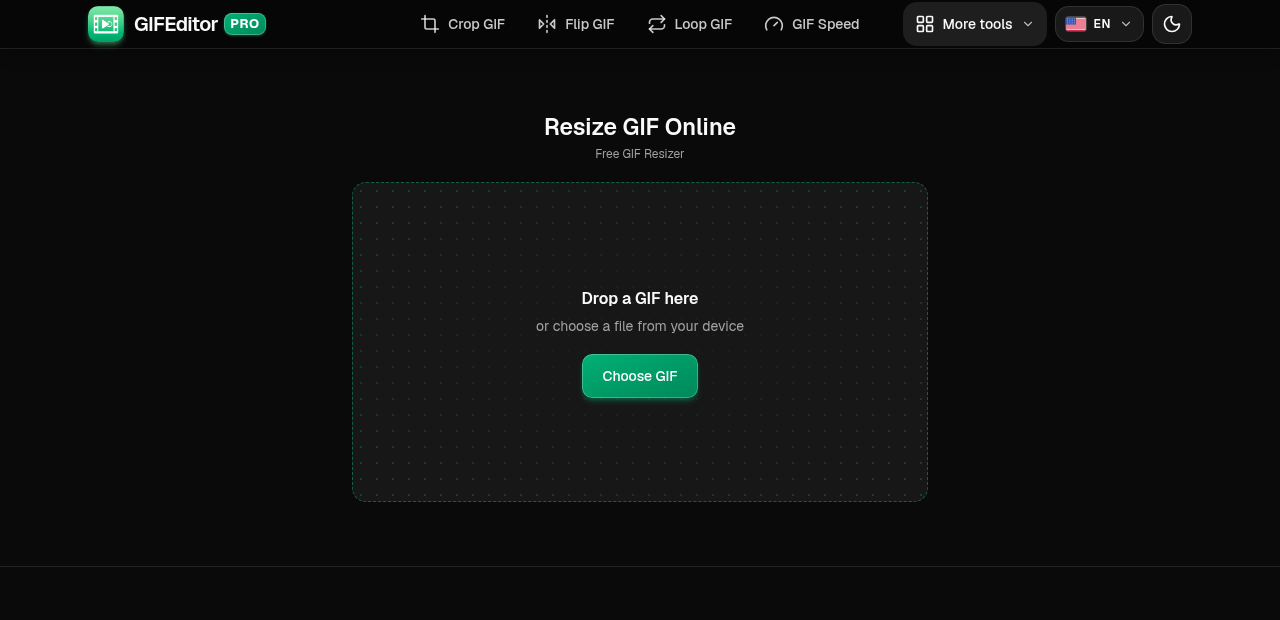
Drop a GIF here
or choose a file from your device
Resize GIF Online: Free GIF Resizer Tool
This is a free online GIF resizer. Open an animated GIF, type the width and height you want in pixels or pick a scale such as 50%, and download the resized GIF in a few seconds. There is no account to create, no watermark on the result and nothing to install.
People resize a GIF to make it fit a chat or a post, to shrink a large GIF so it loads faster, to match the exact dimensions a website asks for, or to make a small GIF bigger for a presentation. If you also need to crop, shorten, speed up or add text to the GIF, our full GIF editor on the home page does that too.
Resize GIF Features
A GIF resizer that does one job and does it well.
- Exact width and height: Type the size you need in pixels. The preview changes as you type, so you can see the new size before you create the file.
- Keep the proportions: With the lock on, changing the width updates the height for you (and the other way round), so the GIF is never stretched by accident.
- Stretch when you want to: Turn the lock off to set the width and height on their own, for a banner, an avatar or any size that has a different shape.
- Quick scale buttons: Tap 25%, 50%, 75%, 100%, 150% or 200% to scale the GIF from its original size in one tap.
- See the result before you save: The preview plays the resized animation at its new size, so you can check every frame before you create the file.
- Same speed, same loop: Every frame keeps its original timing and the resized GIF loops forever, so the animation plays exactly like the original.
- No watermark, no sign-up: You do not need an account, and the resized GIF downloads clean, without a watermark.
- Private by design: Your GIFs stay on your device. They are not uploaded to a server, and closing the tab clears everything.
- Works on phones and tablets: The layout adapts to any screen size and every control is built for touch, so you can resize a GIF on your phone as comfortably as on a laptop.
How to resize a GIF online in 3 steps
It takes under a minute. Each step lists the important parts in order.
Open your GIF
Drag a GIF onto the page or tap Choose GIF to pick one from your phone, tablet or computer. This tool works with GIF files only.
On this screen
- Choose GIF: opens your file picker. On a computer you can also drop the file anywhere on the page.
Set the new size
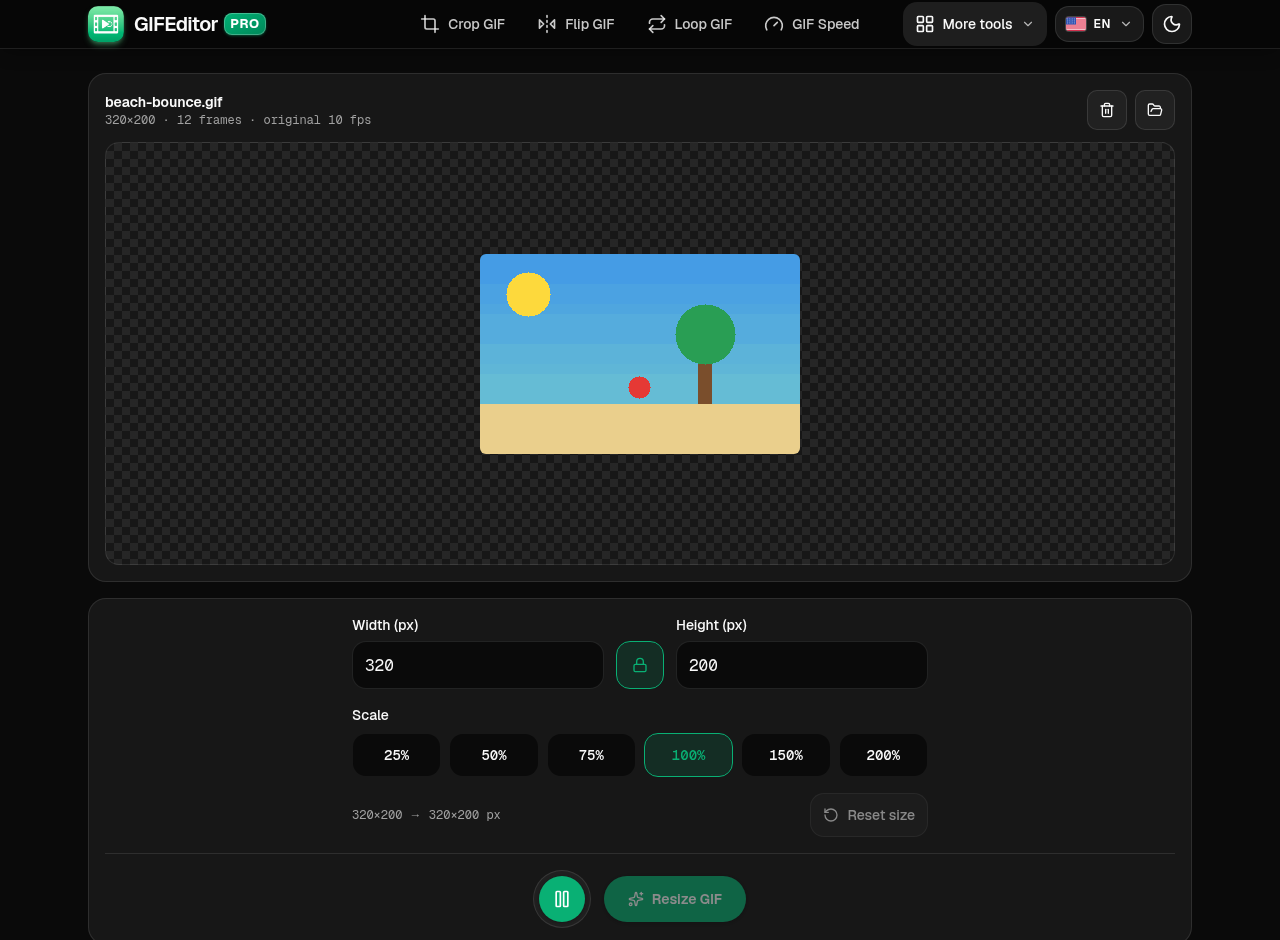
Your GIF opens with the size controls under the preview. Type a width or a height, or tap a scale button. With proportions locked, the other side follows automatically. Press Play to check how it looks.
Where everything is
- Width and Height: the new size in pixels.
- Lock: keeps the proportions so the GIF is not stretched. Turn it off to set each side on its own.
- Scale buttons: resize from the original size by a percentage.
- Reset size: goes back to the original size.
- Play: preview the animation.
- Resize GIF: creates your resized GIF. It stays off until the size changes.
Resize and download your GIF
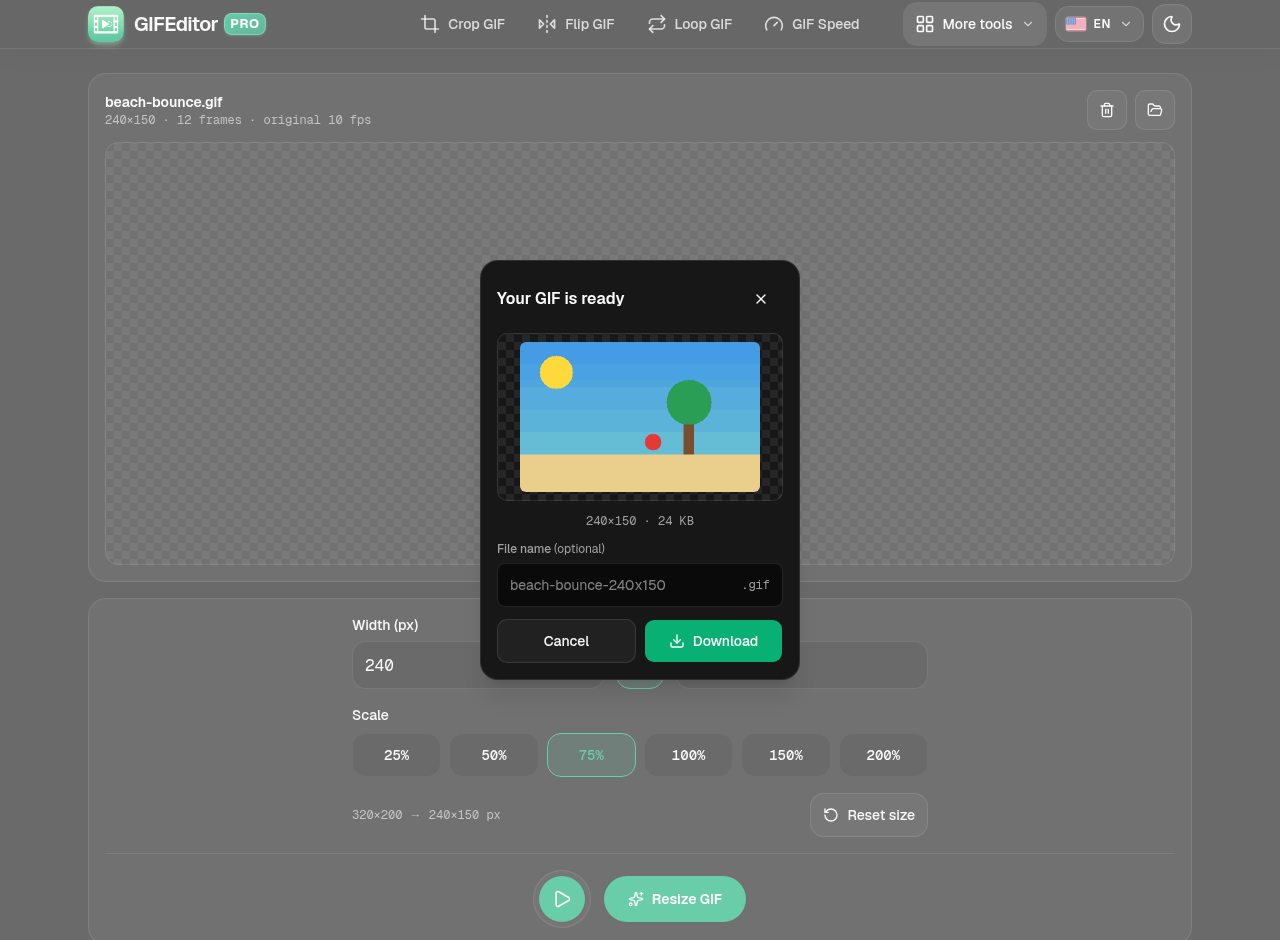
You get a preview and the final file size before anything is saved. Rename the file if you like, then download it.
In the dialog
- Preview: the resized GIF, with its dimensions and file size.
- File name: optional. Leave it empty to keep the default name.
- Download: saves the GIF to your device.
Frequently asked questions
Is this GIF resizer really free?
Yes. You do not need an account, there is no watermark on your GIF and there are no hidden limits to unlock. Open a GIF, set a size and download the result.
How do I resize a GIF?
Open your GIF, type a new width or height or tap a scale button, press Resize GIF and download the result. You can press Play first to check how it looks.
How do I resize a GIF without stretching it?
Keep the lock next to the width and height switched on. When you change one side, the other updates to match the original proportions.
How do I make a GIF smaller?
Lower the width and height, or tap 50% or 25%. A smaller GIF has fewer pixels in every frame, so the file is usually much lighter. For even smaller files, try the GIF compressor.
Can I make a GIF bigger?
Yes, up to 2000 pixels on each side. Making a GIF bigger cannot add detail that was not in the original, so a large enlargement can look soft.
Does resizing a GIF lower its quality?
Making a GIF smaller keeps it sharp at the new size. A GIF can only use 256 colors per frame, so the file is encoded again and very smooth gradients may look slightly different. GIFs wider than 1280 pixels are scaled down to 1280 pixels wide when they open.
Will the resized GIF still loop?
Yes. The resized GIF loops forever, and every frame keeps its original timing.
Are my GIFs uploaded anywhere?
No. Your files stay on your device and are never uploaded to a server. That also means a refresh or closing the tab discards your work, which is why we warn you before you leave with a GIF open.
Is there a limit on how long the GIF can be?
Up to the first 300 frames are used. If your GIF is longer, shorten it first with the full GIF editor on the home page.
Can I resize a GIF on iPhone, Android or a tablet?
Yes. The tool works on phones and tablets, and the controls are sized for touch.
Can I resize a video or another type of image?
This tool only opens GIF files. If you have a video, the full GIF editor on the home page can turn it into a GIF at the size you choose.