Add Text to GIF
Write captions, titles and memes on a GIF
Drop a GIF here
or choose a file from your device
Add Text to GIF Online: Free GIF Caption Maker
This is a free online tool to add text to a GIF. Open a GIF, type your caption, drag it where you want it and download a new GIF with the text built in. There is no account to create, no watermark on the result and nothing to install, and your GIF is never uploaded to a server.
Use it to caption a meme, add a title to a product demo, label a screen recording or put a message on a reaction GIF. You can add as many text layers as you need, each with its own font, color, style and timing. If you also want to trim, crop, flip or change the speed of the GIF, those tools are right below the preview.
Add Text to GIF Features
Everything you need to caption a GIF, with nothing you have to pay for.
- Drag text anywhere: Tap or click a caption on the preview and drag it into place. Your finger or mouse moves the text exactly where you want it.
- Multiple text layers: Add a title at the top and a caption at the bottom, or as many layers as the GIF needs. Duplicate a layer to reuse its style, and delete the ones you no longer want.
- Fonts and styles: Pick a font, bold or italic, left, center or right alignment, and a color. Meme-style outline, soft shadow, a solid background box or plain text: choose the one that stays readable on your GIF.
- Show text only when you want: Set the first and last frame for every layer so a caption appears, stays and disappears at the right moment instead of covering the whole GIF.
- Full GIF editing too: Trim the clip, crop, rotate, flip, change the speed and choose the output width in the same screen, then export everything in a single step.
- Private by design: Your GIF stays on your device. It is not uploaded anywhere, and closing the tab clears everything.
- Works on phones and tablets: The layout adapts to any screen and every control is sized for touch, so you can add text to a GIF on your phone as easily as on a laptop.
How to add text to a GIF in 3 steps
The whole process takes less than a minute.
Open your GIF
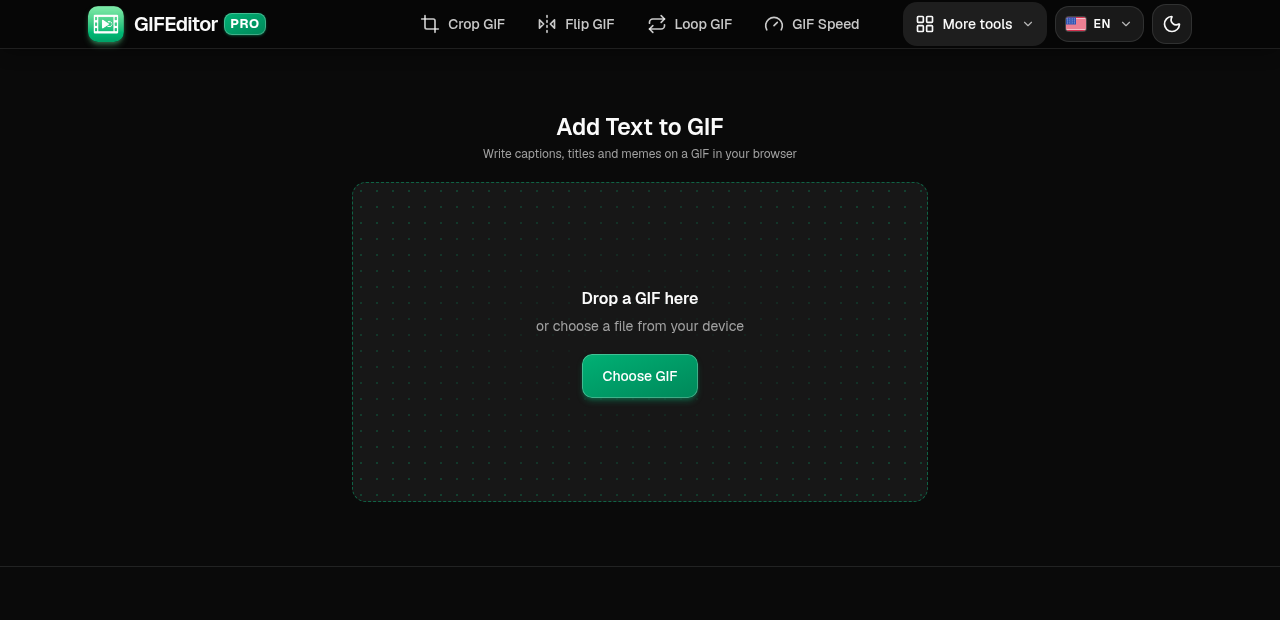
Drag a GIF onto the page or tap the button to pick one from your device. It opens in the editor with the preview and the text controls.
On this screen
- Choose GIF: opens your file picker. On a desktop you can also drop a file on the page.
Add and style your text
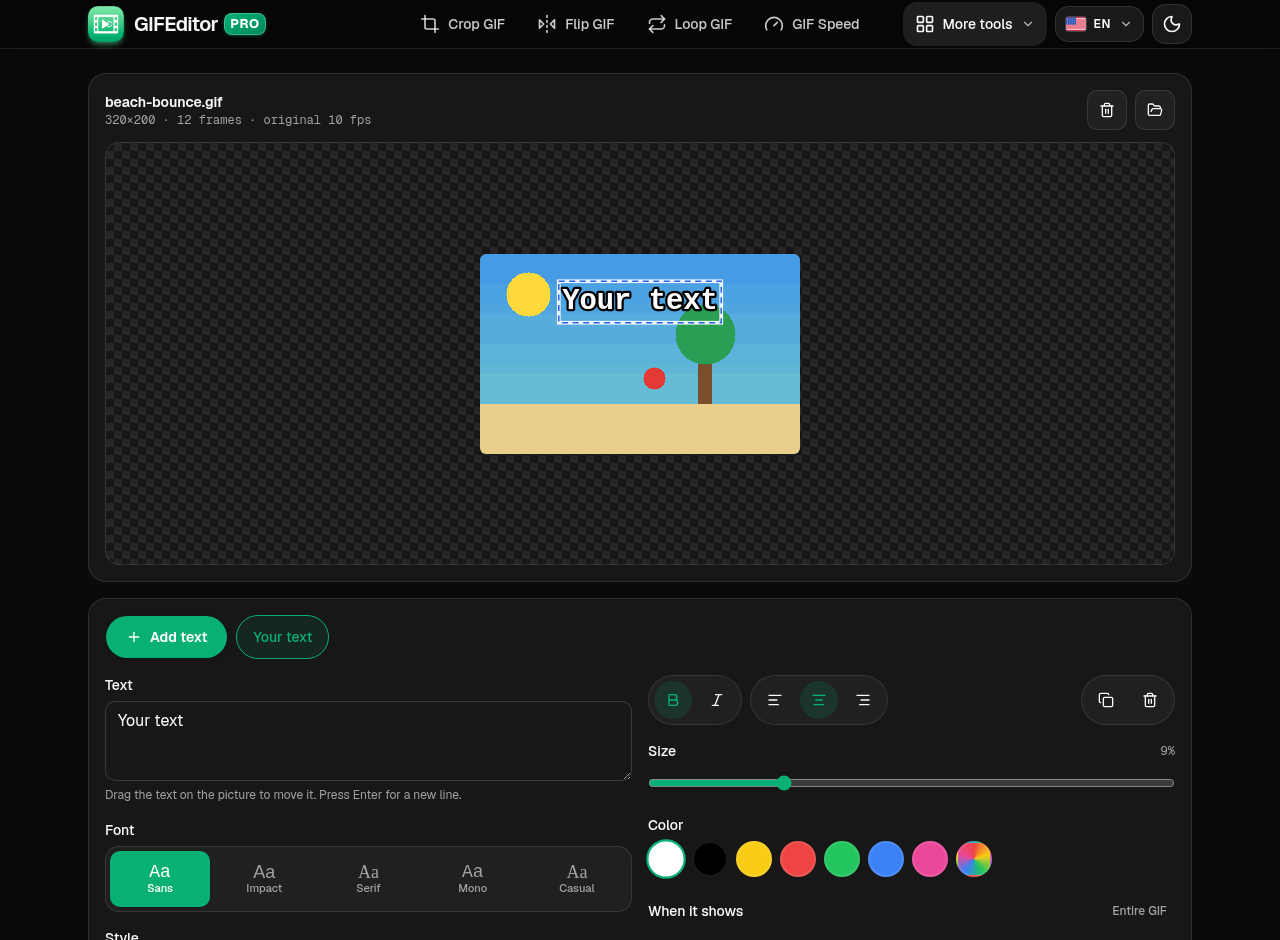
Press Add text, type your caption and drag it into place on the preview. Choose the font, size, color and style, and set the frames where the text should show.
Where everything is
- Add text: creates a new text layer.
- Text box: type or edit the caption of the selected layer.
- Style controls: font, size, color and look of the text.
Export and download
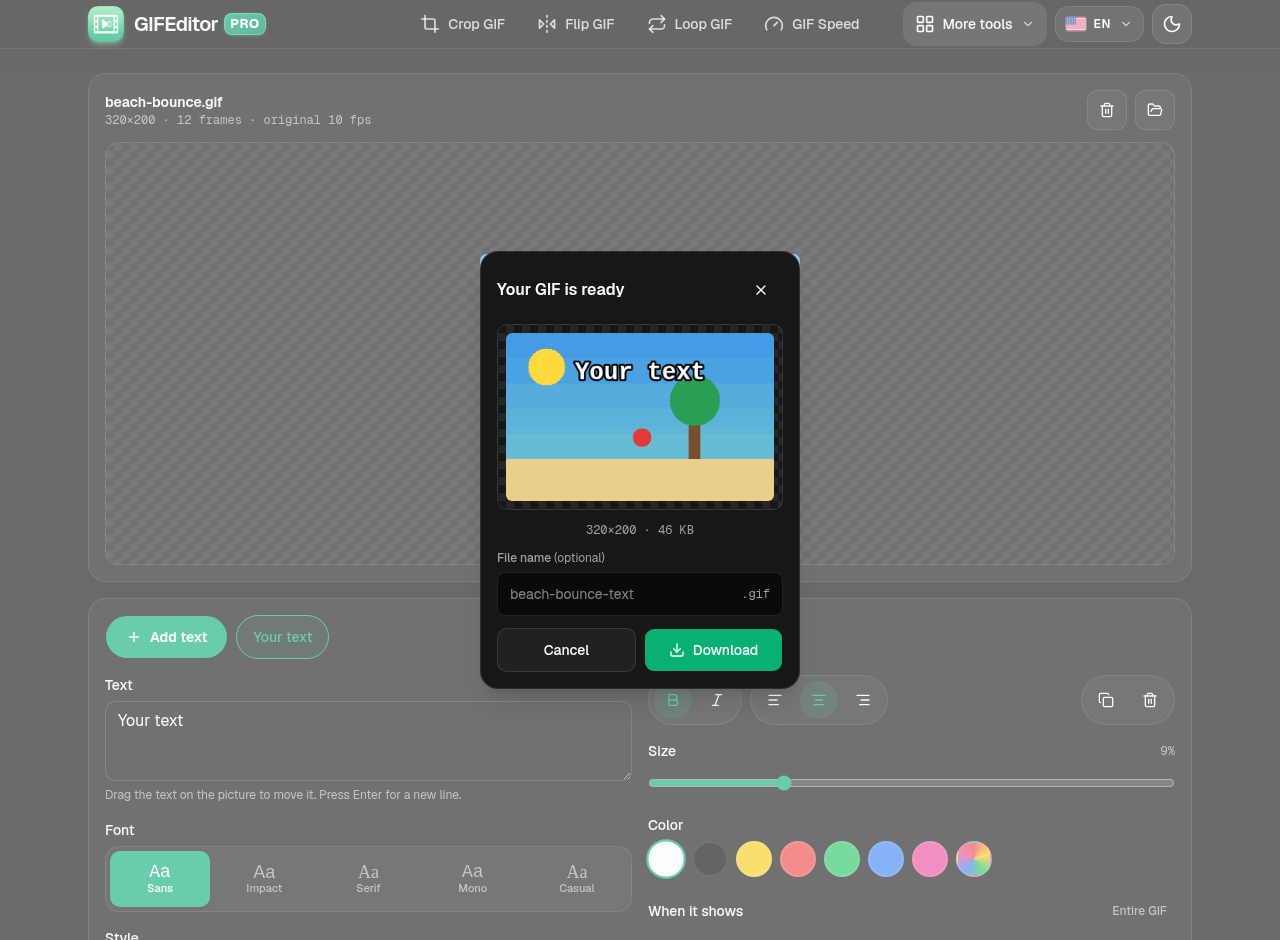
Press Export GIF. When it finishes you see the preview and the file size. Rename the file if you like, then download it.
In the dialog
- Preview: the GIF with your text, with its dimensions and size.
- File name: rename the GIF before you save it.
- Download: saves the GIF to your device.
Frequently asked questions
How do I add text to a GIF?
Open the GIF, press Add text, type your caption and drag it to the position you want. Then press Export GIF and download the result.
Can I add text to only part of a GIF?
Yes. Every text layer has its own first and last frame, so a caption can appear and disappear at the moments you choose.
Can I add more than one line or more than one caption?
Yes. Press Enter inside a text box for a new line, and use Add text again for another layer, for example a title at the top and a caption at the bottom.
How do I make the text easy to read?
Use white text with the Outline style, the classic meme look that works on almost any background. If the GIF is busy, try the Box style, which puts the text on a solid background.
Is this tool really free?
Yes. You do not need an account, there is no watermark on your GIF and there are no hidden limits.
Is my GIF uploaded to a server?
No. Everything happens on your device and your file never leaves it. A refresh or closing the tab discards your work, so we warn you before you leave with a GIF open.
Does it keep the quality and the animation of my GIF?
Yes. The new GIF keeps the frames and the timing of the original. You can also choose the output width, and a smaller width gives a smaller file.
Does it work on iPhone, Android and tablets?
Yes. It works on phones and tablets, and you can drag the text with your finger. Very long or large GIFs can be heavy for a phone.