Online GIF Editor
Free GIF Editor & GIF Maker
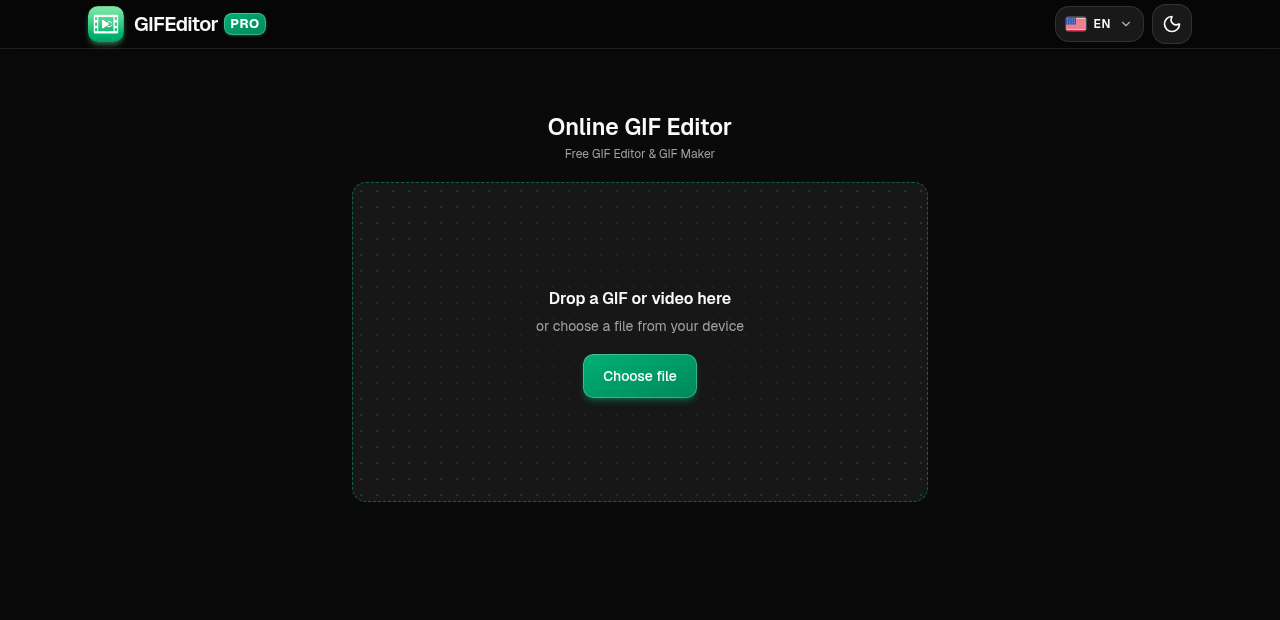
Drop a GIF or video here
or choose a file from your device
Free GIF editor & GIF Maker Tool
GIFEditor Pro is a free online GIF editor and GIF maker. Drop in a GIF or a video, trim the part you like, crop it, flip it, change the speed, and download a fresh GIF. There is no account to create, no watermark on the result and nothing to install.
We built it for the quick jobs: cutting a reaction GIF down for Slack, turning a screen recording into a GIF for a bug report, cropping a meme, or converting a video to GIF for a README. If it takes you more than a minute, we have some work to do.
GIF Editor Features
Everything you need to edit a GIF online, without the clutter of a full video editor.
- Edit frame by frame: Every frame shows up as a thumbnail on the timeline. Click one to jump to it, zoom the timeline for finer control, press Space to play and the arrow keys to step one frame at a time.
- Trim a GIF: Drag the green handles on either end of the timeline to keep only the moment that matters. Shorter GIFs also mean smaller files.
- Video to GIF: Open an MP4, WebM, MOV or any other video your browser can play and turn it into a GIF. You can trim, crop and rotate it just like a GIF.
- Crop a GIF: Hit Crop, drag the box over the area you want to keep and apply it. Handy for cutting out black bars, browser chrome or a distracting background.
- Rotate, mirror and flip: Turn a sideways phone recording upright in one tap, or mirror and flip the picture whenever the shot calls for it.
- Speed up or slow down a GIF: Pick any speed from 0.25x to 4x. Slow a punchline down for effect or speed up a long screen recording so it stays snappy.
- Resize and shrink: Choose the output width before you export. A smaller width is the fastest way to get a lighter GIF that loads quickly in chats, emails and docs.
- Undo and redo: Cropped too much? Rotated the wrong way? Step back and forward through your edits without starting over.
- Private by design: Your files stay on your device. They are not uploaded to a server, and closing the tab clears everything.
- Works on phones and tablets: The layout adapts to any screen size and every control is built for touch, so you can edit a GIF on your phone as comfortably as on a laptop.
How to edit a GIF online in 3 steps
The whole process takes about a minute. Here is what each screen looks like, with the important parts marked.
Open your GIF or video
Drag a file onto the page or tap the button to pick one from your device. GIF files and common videos like MP4, WebM and MOV all work.
On this screen
- Choose file: opens your file picker. On a desktop you can also drop a file anywhere on the page.
Trim, crop and adjust
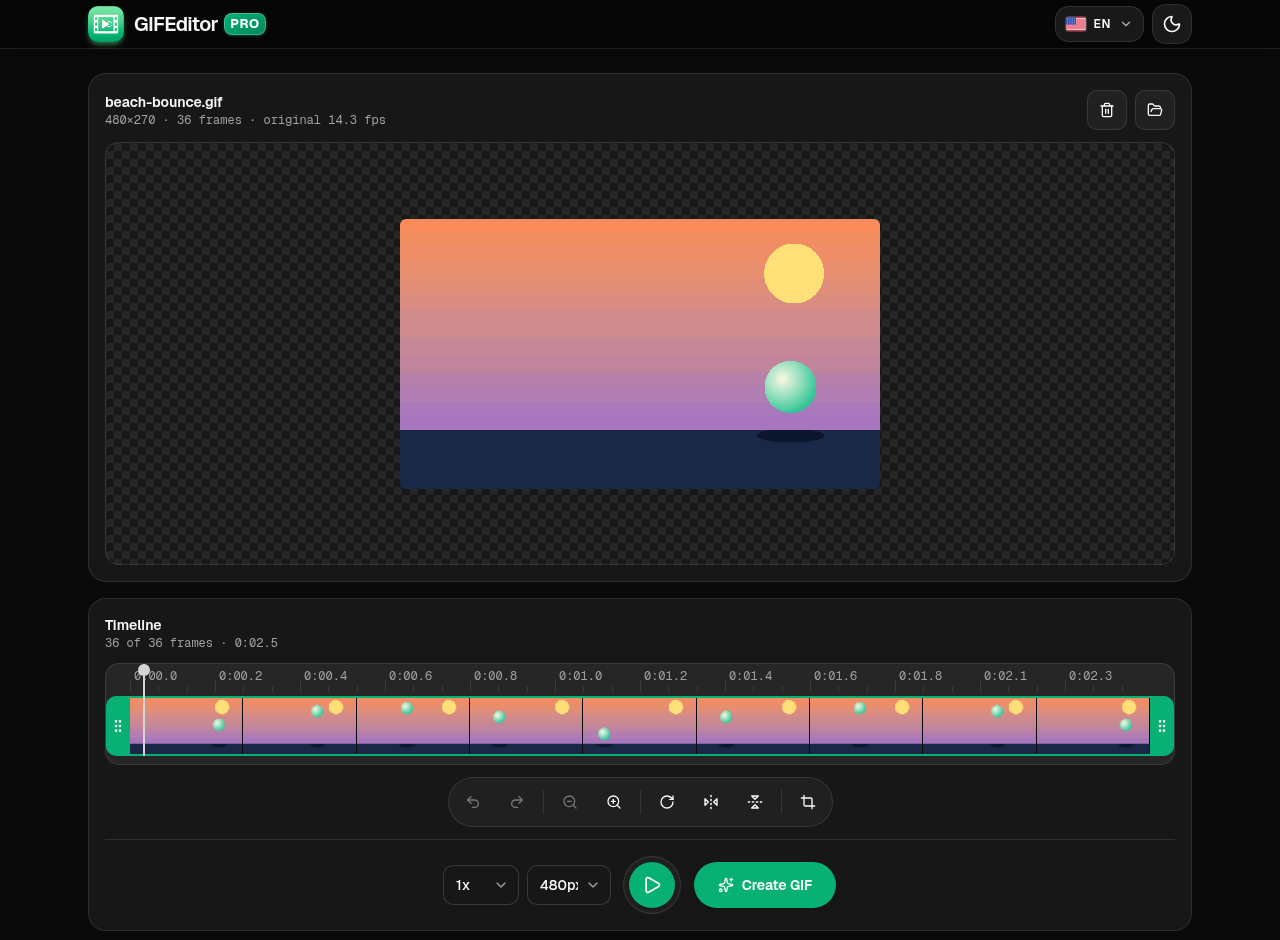
Your file opens with a live preview and a timeline of every frame. Make your edits here, and press Play at any time to check how it looks.
Where everything is
- Trim handles: drag them to set where the GIF starts and ends.
- Tools: undo, redo, zoom the timeline, rotate, mirror, flip and crop.
- Speed: from 0.25x up to 4x.
- Output resolution: choose a smaller width for a lighter file.
- Create GIF: builds your new GIF from everything you changed.
Create and download your GIF
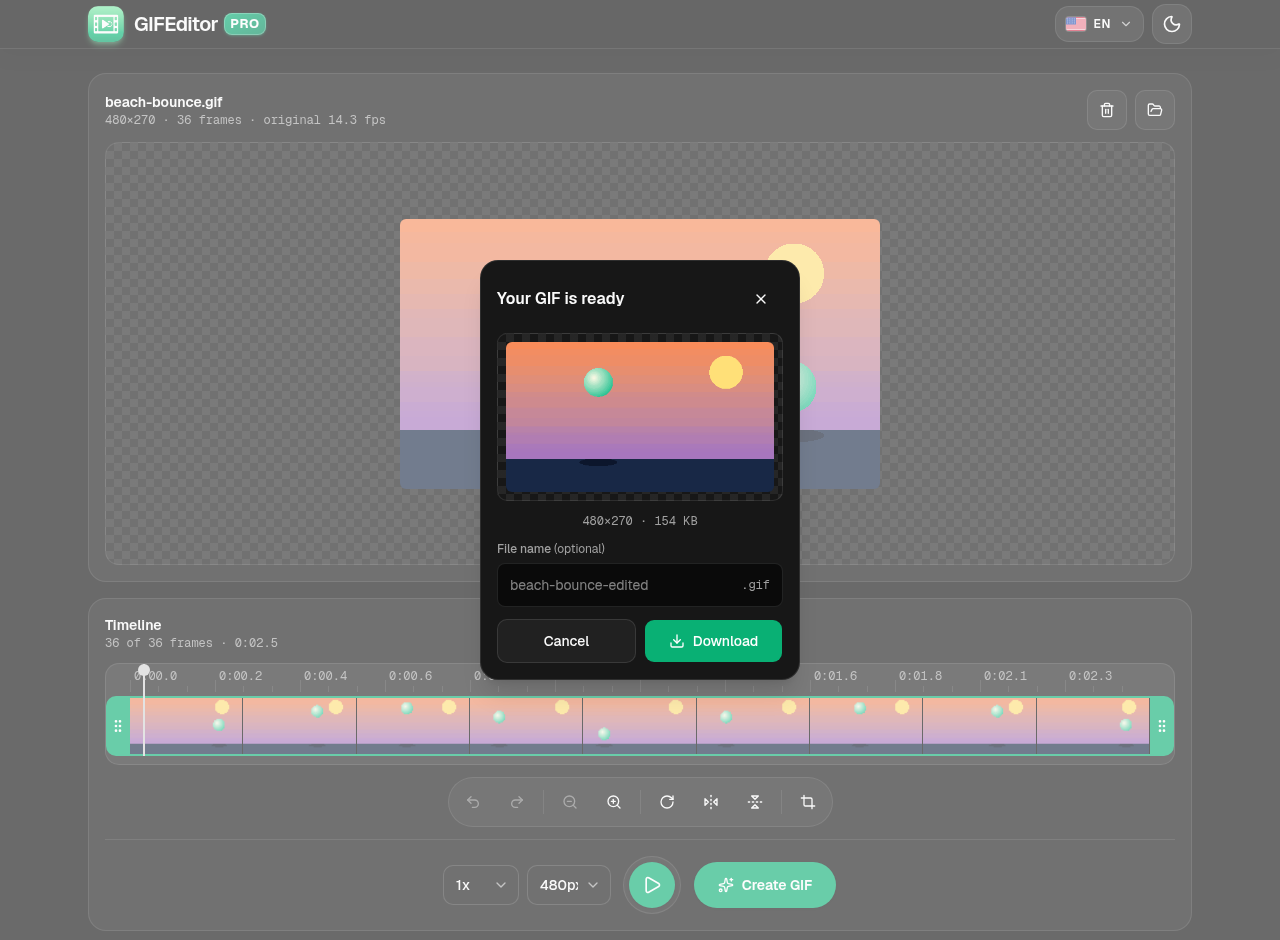
When the GIF is ready you get a preview and the final size, so you know what you are about to download. Rename it if you like, then save it.
In the dialog
- Preview: the final GIF, with its dimensions and file size.
- File name: optional. Leave it empty to keep the default name.
- Download: saves the GIF to your device.
Frequently asked questions
Is this online GIF editor really free?
Yes. You do not need an account, there is no watermark on your GIF and there are no hidden limits to unlock. Open a file, edit it and download the result.
Are my GIFs and videos uploaded anywhere?
No. Your files stay on your device and are never uploaded to a server. That also means a refresh or closing the tab discards your work, which is why we warn you before you leave with a file open.
How do I convert a video to a GIF?
Open your video, drag the trim handles to select the moment you want, adjust the crop, speed or resolution if you need to, and press Create GIF. Short clips of a few seconds work best, because GIFs get large quickly.
How do I make a GIF smaller?
Three things help the most: trim away frames you do not need, pick a smaller output resolution, and crop out empty areas. A narrower, shorter GIF can be a fraction of the original size.
Can I crop a GIF?
Yes. Press the Crop button, drag the box around the area you want to keep and apply it. If you are not happy with the result, use Undo.
Can I speed up or slow down a GIF?
Yes. Use the speed menu to choose anything from 0.25x to 4x before you create the GIF.
Which file formats can I open?
GIF files and any video your browser can play, including MP4, WebM and MOV. Support for a few less common formats depends on your browser, and if one will not open, converting it to MP4 usually fixes it.
Does it work on iPhone, Android and tablets?
Yes. GIFEditor Pro works in the browser on phones and tablets, and the controls are sized for touch. Very long or high-resolution videos can be heavy for a phone, so trimming first helps.