Flip GIF Online
Free GIF Flipper
Drop a GIF here
or choose a file from your device
Flip GIF Online: Free GIF Flipper Tool
This is a free online GIF flipper. Open an animated GIF, choose whether to mirror it left to right, turn it upside down, or both, and download the flipped GIF in a few seconds. There is no account to create, no watermark on the result and nothing to install.
People flip a GIF to fix a selfie that came out mirrored, to make a character face the other way so it lines up with the text, to build a mirror-image version of a meme, or to turn a clip that was filmed upside down. If you also need to crop, shorten, speed up or rotate the GIF, our full GIF editor on the home page does that too.
Flip GIF Features
A GIF flipper that does one job and does it well.
- Flip horizontal (mirror): Swap the left and right sides of the picture, like looking in a mirror. This is the one to use when a character faces the wrong way.
- Flip vertical: Turn the picture upside down, from top to bottom. Handy for a clip that was filmed with the phone the wrong way up.
- Use both together: Switch on both directions to turn the GIF a full 180 degrees. Each button works on its own, so you can combine them any way you like.
- See the result before you save: The preview plays the flipped animation straight away, so you can check every frame before you create the file.
- Undo, redo and reset: Flipped the wrong way? Undo it, redo it, or put the GIF back to the original with one tap.
- Same speed, same loop: Every frame keeps its original timing and the flipped GIF loops forever, so the animation plays exactly like the original.
- No watermark, no sign-up: You do not need an account, and the flipped GIF downloads clean, without a watermark.
- Private by design: Your GIFs stay on your device. They are not uploaded to a server, and closing the tab clears everything.
- Works on phones and tablets: The layout adapts to any screen size and every control is built for touch, so you can flip a GIF on your phone as comfortably as on a laptop.
How to flip a GIF online in 3 steps
It takes under a minute. Each screen below has the important parts numbered.
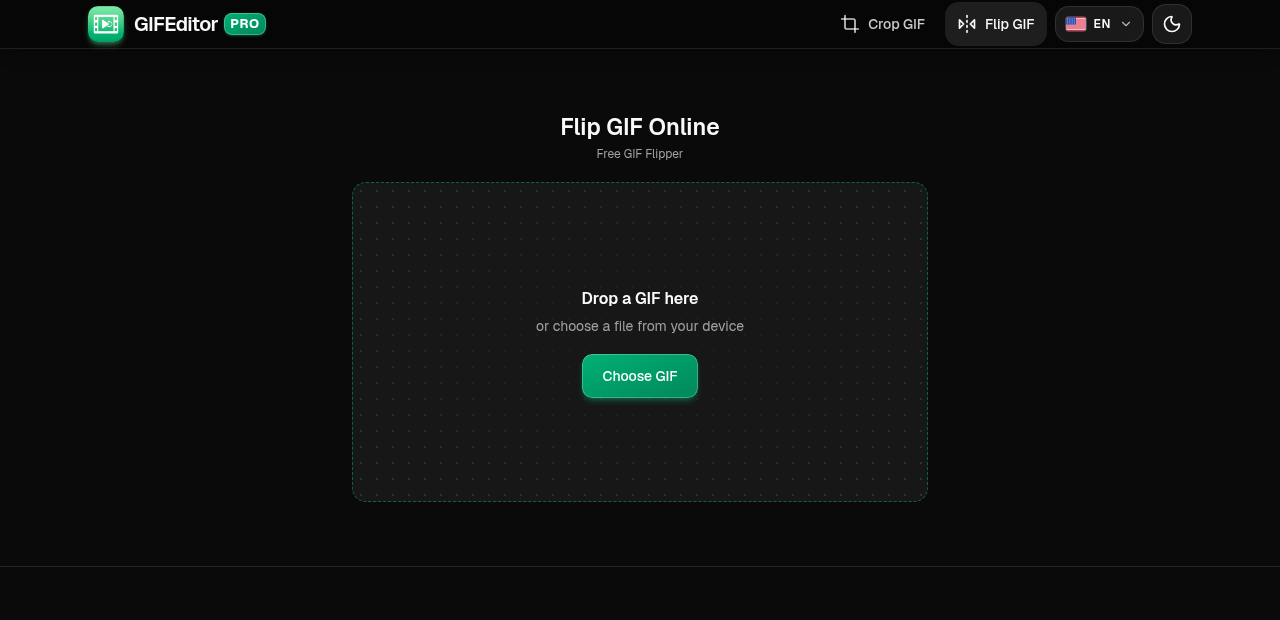
Open your GIF
Drag a GIF onto the page or tap Choose GIF to pick one from your phone, tablet or computer. This tool works with GIF files only.
On this screen
- Choose GIF: opens your file picker. On a computer you can also drop the file anywhere on the page.
Choose how to flip it
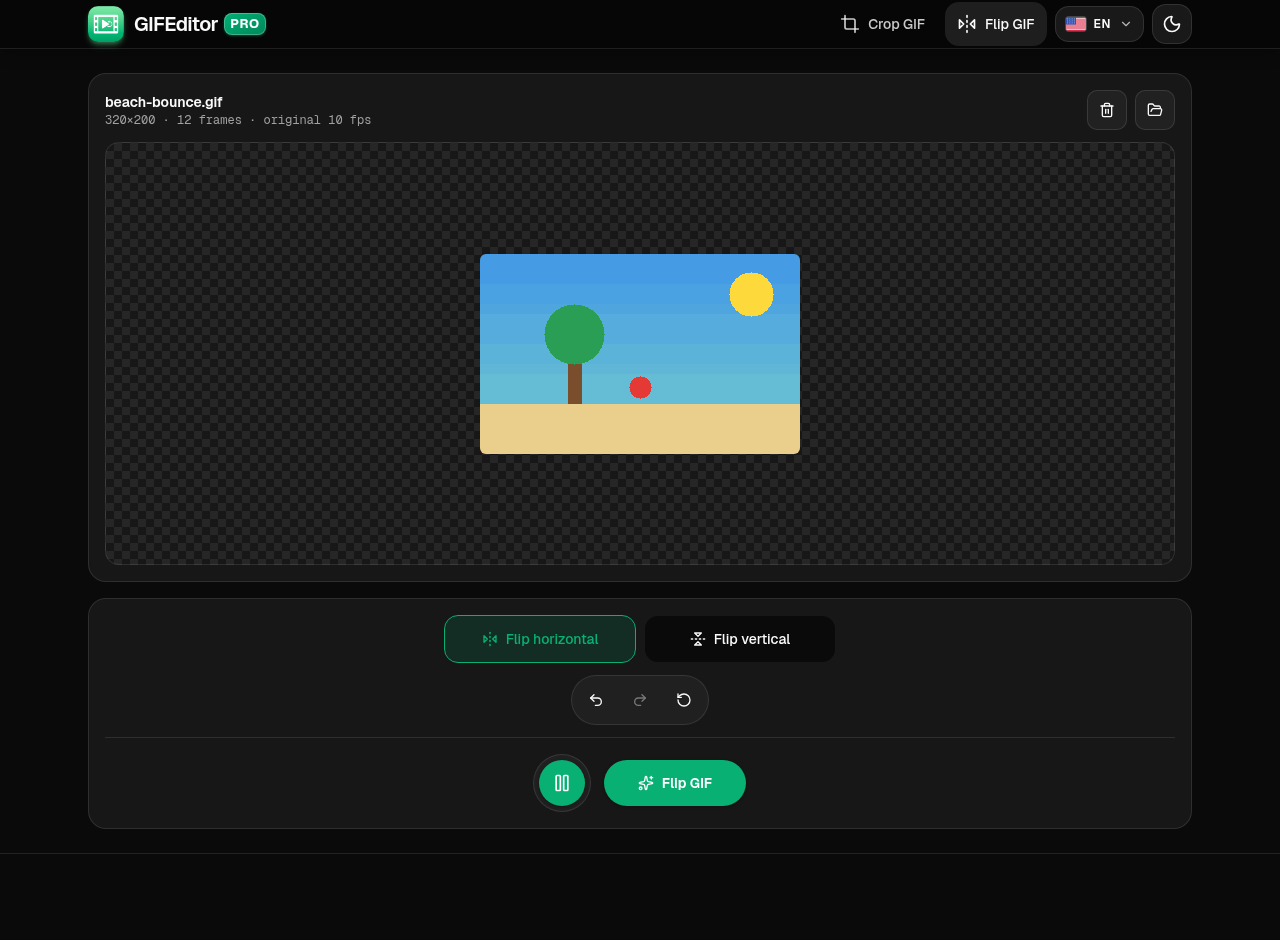
Your GIF opens with two flip buttons under the preview. Tap Flip horizontal to mirror it, Flip vertical to turn it upside down, or both. The preview updates at once, so press Play to check it.
Where everything is
- Flip horizontal: swaps left and right, like a mirror.
- Flip vertical: turns the picture upside down.
- Undo, redo and reset: step through your changes or go back to the original.
- Play: preview the animation.
- Flip GIF: creates your flipped GIF. It stays off until you choose a direction.
Flip and download your GIF
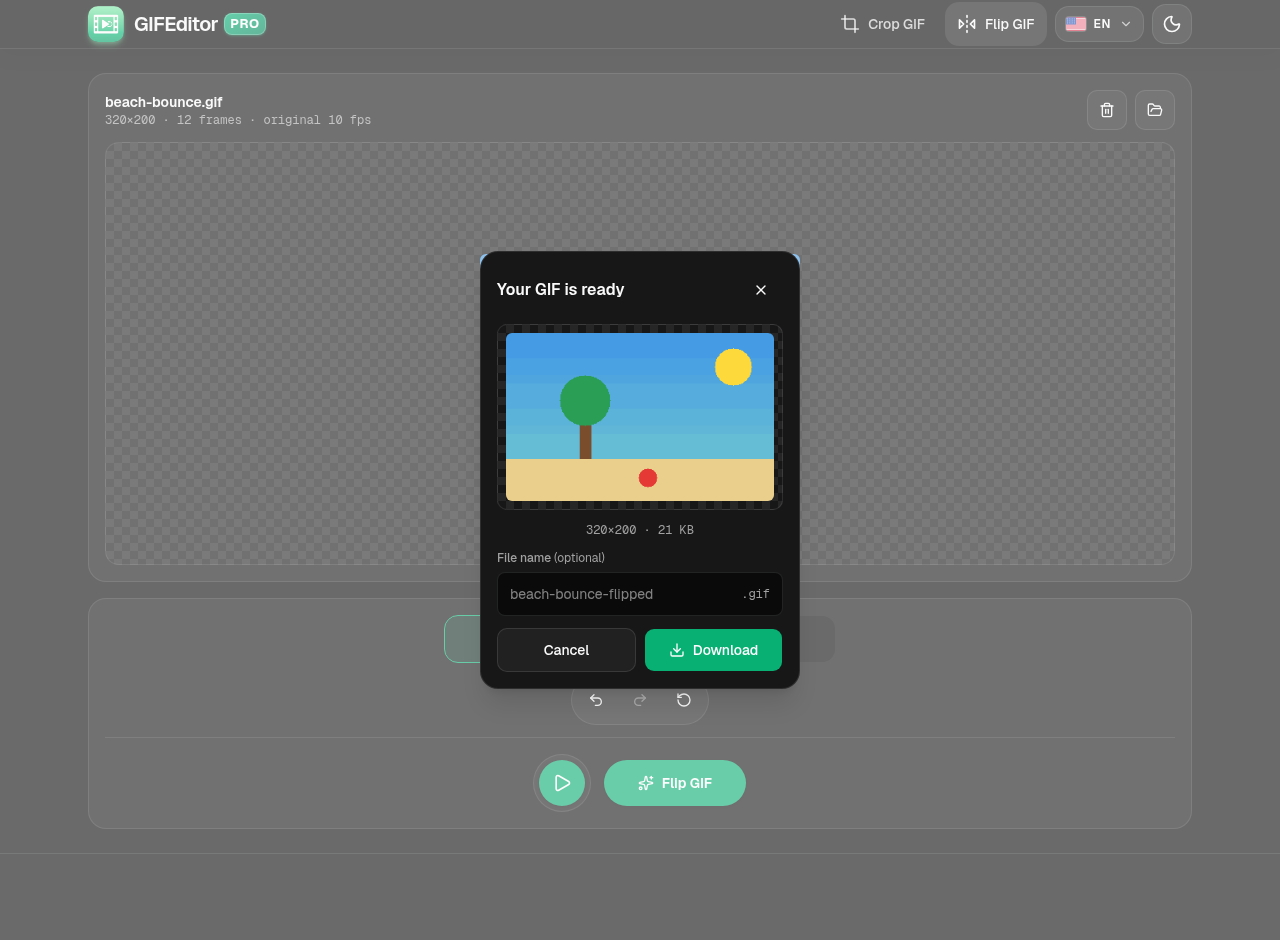
You get a preview and the final size before anything is saved. Rename the file if you like, then download it.
In the dialog
- Preview: the flipped GIF, with its dimensions and file size.
- File name: optional. Leave it empty to keep the default name.
- Download: saves the GIF to your device.
Frequently asked questions
Is this GIF flipper really free?
Yes. You do not need an account, there is no watermark on your GIF and there are no hidden limits to unlock. Open a GIF, choose a direction and download the result.
How do I flip a GIF?
Open your GIF, tap Flip horizontal, Flip vertical or both, press Flip GIF and download the result. You can press Play first to check how it looks.
What is the difference between flipping and rotating a GIF?
Flipping mirrors the picture, so a left-facing character ends up facing right. Rotating turns it in quarter turns and never mirrors it. This tool only flips. To rotate, crop, shorten or speed up a GIF, use the full GIF editor on the home page.
How do I mirror a GIF?
Use Flip horizontal. It swaps the left and right sides, which is what most people mean by mirroring a GIF.
How do I turn a GIF upside down?
Use Flip vertical to turn it upside down. If you switch on both buttons, the GIF is turned a full 180 degrees.
Does flipping a GIF lower its quality?
The picture is not resized. A GIF can only use 256 colors per frame, though, so the file is encoded again and very smooth gradients may look slightly different. GIFs wider than 480 pixels are scaled down to 480 pixels wide when they open, so the result is never wider than that.
Will the flipped GIF still loop?
Yes. The flipped GIF loops forever, and every frame keeps its original timing.
Are my GIFs uploaded anywhere?
No. Your files stay on your device and are never uploaded to a server. That also means a refresh or closing the tab discards your work, which is why we warn you before you leave with a GIF open.
Is there a limit on how long the GIF can be?
Up to the first 300 frames are used. If your GIF is longer, shorten it first with the full GIF editor on the home page.
Can I flip a GIF on iPhone, Android or a tablet?
Yes. The tool works in the browser on phones and tablets, and the controls are sized for touch.
Can I flip a video or another type of image?
This tool only opens GIF files. If you have a video, the full GIF editor on the home page can turn it into a GIF and flip it.