MP4 to GIF Converter
Free MP4 to GIF Maker
Drop an MP4 video here
or choose a video from your device
MP4 to GIF Converter: Free Online Video to GIF Maker
This is a free online MP4 to GIF converter. Open an MP4 video, choose the part you want to keep, and download it as an animated GIF in a few seconds. There is no account to create, no watermark on the result and nothing to install.
People turn an MP4 into a GIF to share a short moment in a chat, to make a reaction or a meme, to show a product demo in an email or a document, or to loop a clip on a page that does not play video. MOV, WebM and other common video files work too, and the full editor lets you crop, flip, rotate and change the speed before you save.
MP4 to GIF Features
Everything you need to turn a video into a good looking GIF.
- Pick the exact moment: Drag the start and end handles on the timeline to keep just the part of the video you want. The preview shows every change as you make it.
- Choose the GIF size: Pick a width such as 640, 480 or 240 pixels. A smaller GIF loads faster and fits chats and emails, a larger one keeps more detail.
- Change the speed: Slow a clip down to show a detail or speed it up to make it shorter. The GIF plays at the speed you set.
- Crop, rotate and flip: Cut away the parts of the frame you do not need, turn a sideways phone video upright, or mirror the picture before you create the GIF.
- Undo and redo: Try an edit and take it back with one tap. Nothing is saved until you press Create GIF.
- More than MP4: MOV, WebM and most other video files open too, as long as your device can play them.
- No watermark, no sign-up: You do not need an account, and the GIF downloads clean, without a watermark.
- Private by design: Your videos stay on your device. They are not uploaded to a server, and closing the tab clears everything.
- Works on phones and tablets: The layout adapts to any screen size and every control is built for touch, so you can turn a video into a GIF on your phone as comfortably as on a laptop.
How to convert MP4 to GIF in 3 steps
It takes about a minute. Each step lists the important parts in order.
Open your MP4 video
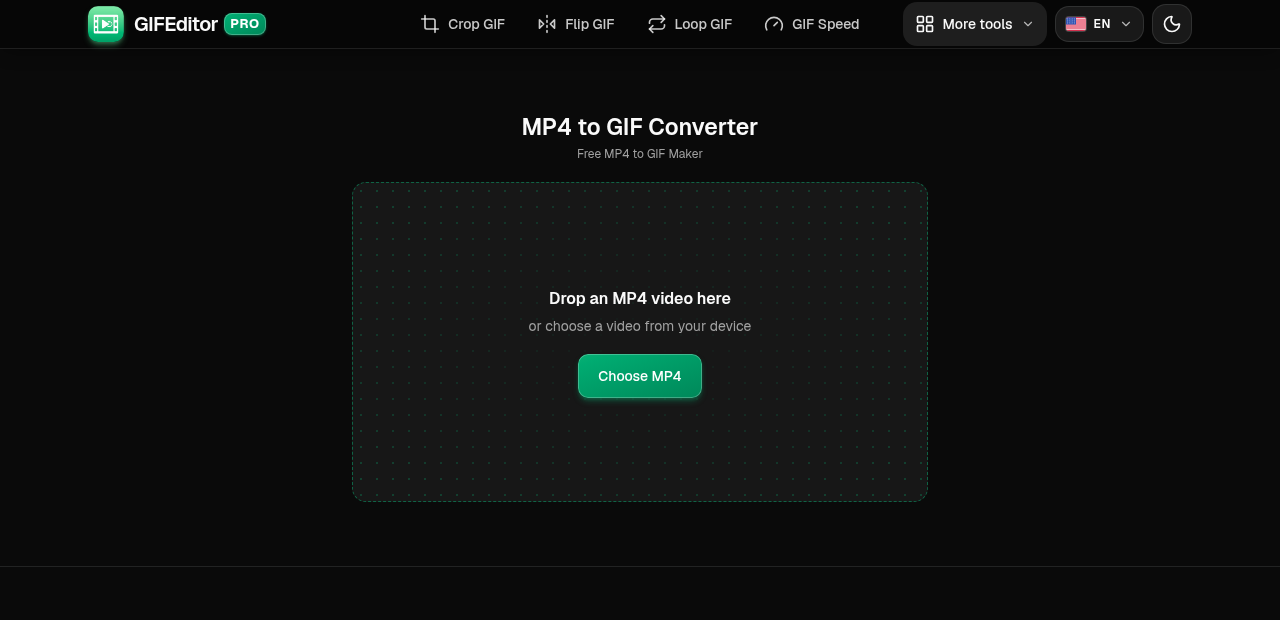
Drag a video onto the page or tap Choose MP4 to pick one from your phone, tablet or computer. MP4, MOV and WebM files all work.
On this screen
- Choose MP4: opens your file picker. On a computer you can also drop the video anywhere on the page.
Pick the part to keep
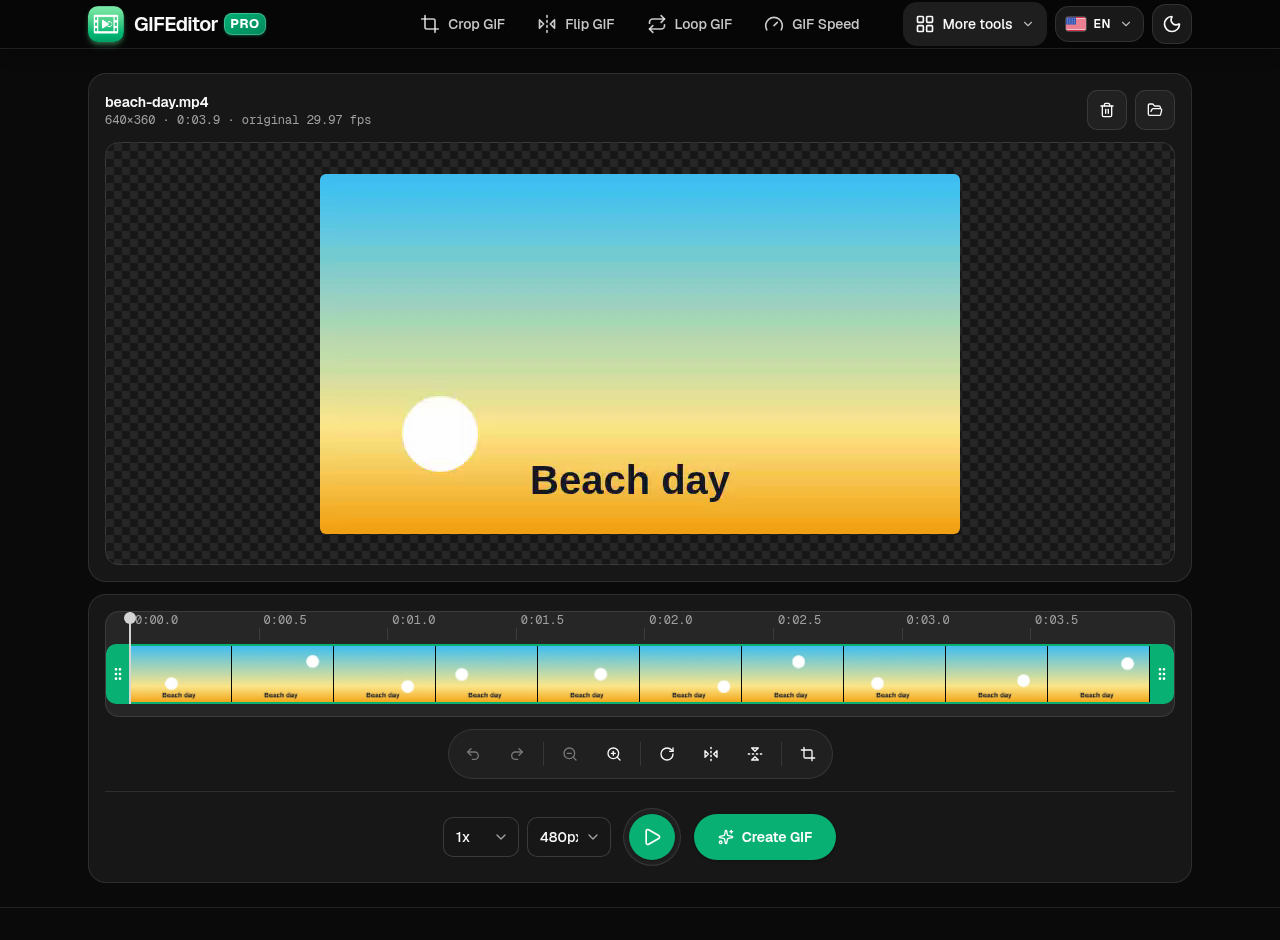
Your video opens with a preview and a timeline. Drag the handles at both ends of the timeline to choose where the GIF starts and ends, then set the size and the speed. Press Play to check how it looks.
Where everything is
- Preview: the video, with the crop, rotate and flip tools above it.
- Timeline: drag the two end handles to keep only the part you want.
- Play: preview the part you selected.
- Speed: slow the clip down or make it faster.
- Size: the width of the GIF. A smaller size gives a lighter file.
- Create GIF: turns the selected part into your GIF.
Create and download your GIF
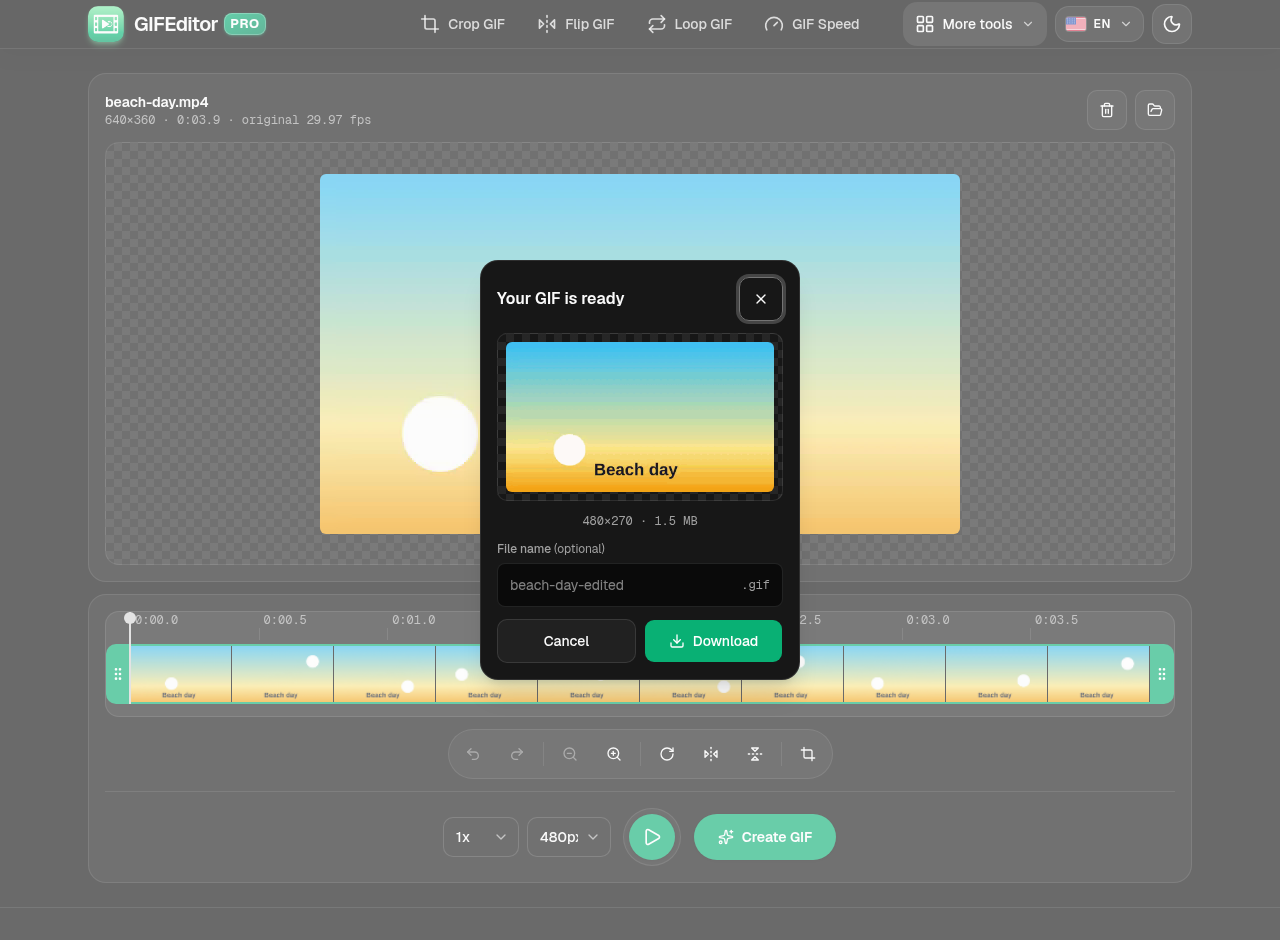
You get a preview and the final file size before anything is saved. Rename the file if you like, then download it.
In the dialog
- Preview: the finished GIF, with its dimensions and file size.
- File name: optional. Leave it empty to keep the default name.
- Download: saves the GIF to your device.
Frequently asked questions
Is this MP4 to GIF converter really free?
Yes. You do not need an account, there is no watermark on your GIF and there are no hidden limits to unlock. Open a video, pick the part you want and download the GIF.
How do I convert an MP4 to a GIF?
Open your MP4, drag the timeline handles to choose the part to keep, press Create GIF and download the result. You can press Play first to check how it looks.
Can I turn only part of a video into a GIF?
Yes. GIFs are best kept short, so drag the start and end handles on the timeline and only that part is converted.
How do I make the GIF file smaller?
Choose a smaller width and keep the clip short. Fewer pixels and fewer frames both make a lighter file. For an even smaller GIF, try the GIF compressor.
Does the GIF have sound?
No. The GIF format does not support audio, so the sound from the video is left out.
Why does the GIF look different from the video?
A GIF can only use 256 colors per frame, so very smooth gradients may look slightly different, and the frame rate is lower than in most videos. That is how the GIF format works.
Which video formats can I use?
MP4 works best. MOV, WebM and other common formats open too, as long as your device can play them. If a file does not open, try exporting it as MP4 first.
Are my videos uploaded anywhere?
No. Your files stay on your device and are never uploaded to a server. That also means a refresh or closing the tab discards your work, which is why we warn you before you leave with a video open.
Is there a limit on how long the video can be?
Long videos make very large GIFs, so keep the part you convert short. A few seconds is ideal, and the timeline lets you pick it.
Can I convert a video on iPhone, Android or a tablet?
Yes. The tool works on phones and tablets, and the controls are sized for touch.
Can I also edit an existing GIF here?
Yes. The same editor opens GIF files too, and you can find single-purpose tools for cropping, flipping, resizing and more in the menu.